Fixing Solution Import Errors After Enabling “Create a New Activity” | Dynamics 365 / Dataverse

When you enable “Create a New Activity” for a custom Dataverse table, the platform automatically creates several activity-related relationships (Task, Email, ActivityPointer, etc.). This works fine in your current environment, but when you export the solution and import it into another environment, you may run into errors like:

“The entity relationship role of the referencing entity is required…”
“The referencing entity must have the CanBeRelatedEntityInRelationship property set to true.”

These errors appear because the solution is missing important metadata connected to the activity relationships that Dataverse generated automatically.

👉 Root Cause

Enabling “Create a New Activity” causes Dataverse to create new 1:N system relationships between your custom table and several Activity tables, such as:

  • ActivityPointer (Activity)
  • Task
  • Email
  • Phone Call
  • Appointment
  • Any other custom activity entity

When exporting your solution, the relationship metadata might be included, but the Activity tables themselves are not — causing the import to fail since the target environment cannot recreate these relationships without the updated metadata.

✅ Fix

To successfully import the solution into another environment, include all components involved in the new activity relationships.

Add these to your solution:

  1. Your custom table metadata (Mandatory)
    • Ensures the “Create a New Activity” setting is included.
  2. All activity tables are involved
    • Activity (ActivityPointer)
    • Task, Email, PhoneCall, Appointment (Optional)
    • Any other activity entity Dataverse linked automatically (Optional)
  3. Auto-generated 1:N activity relationships
    • Example:
      • yourTable_ActivityPointers
      • yourTable_Tasks
      • yourTable_Emails

Once all these pieces are included, the solution imports cleanly across environments.

💡Summary

If you enable “Create a New Activity” on a custom table, Dataverse creates several system-managed activity relationships. These relationships depend on the Activity and Task tables, so you must include:

✔ Your custom table metadata
✔ ActivityPointer + specific activity tables
✔ Auto-generated relationships

Adding these components ensures smooth solution imports and prevents frustrating metadata errors.

Power Apps: Exception in Canvas Apps – Object not set to an instance of an object.

Hey there,

Recently, I have encountered the following exception in my Power Apps – Canvas App.

The requested operation is invalid.
Server response: [Datasource name] failed: An error has occurred. Object not set to an instance of an object.
ClientRequestedId: [#GUID]

Canvas App

If you are also facing this exception in your Canvas Apps, then the following proposed solution is for you.

Exception:

Actually, you are facing this exception because you are passing a “null” value to your Canvas App “function” (Filter/LookUp/Search etc.). All you need to do is to check your value before calling a function.

Solution:

To avoid this exception, just make sure you are writing your expressions in a correct way.

Correct:
If(
(!IsBlank(<‘Control Name’>)),

Filter(<‘Datasource name’>, <‘Column name’> = <‘Control Name’>.Text)
)

Incorrect:
Filter(<‘Datasource name’>, <‘Column name’> = <‘Control Name’>.Text)

  1. You should use this approach with all such expressions in your Canvas App.
  2. “<‘Control name’>” inside “IsBlank” method can be replaced with your variable name, if you are using variable for filtration.
  3. Similarly, “Filter” function can be replaced with LookUp, Search, or similar functions, it depends from where you are getting that above error.

I hope it’ll help you.

Thank you!

Power Apps: Data Validation Approach for Canvas Apps Barcode Scanner [Part 2]

Hey there,

In the previous part, we have seen a data validation approach for Canvas App scanner while we were dealing with small data volume. In this part, we’ll see a validation approach that we should take when we are dealing with large data volume.

Scenario: You are validating that the scanned product Id is a valid product Id in your Fin & Ops application. Because, in Fin & Ops we can expect large number of products. So this sort of validation required some extra care to maintain accuracy.

So let’s see that approach with example.

My Canvas App

We are using the same Canvas App that we have used in Part 1 of this series. We have added another scan screen for Product and we’ll perform a validation for a scanned product Id.

“Scanned Product ID” will show a product Id that you’ll scan from a barcode.
“Valid Product” will show “Yes”, if the scanned Product is a valid Product, it will show “No” for invalid Product.

Validation Approach:

To avoid validation inconsistencies while dealing with large data, we should first load the data in a collection and then we should use that collection for validation.

1) On “OnStart” Action of your App, write the following expression.
Clear(<Collection name>);Collect(<Collection name>,<Datasource name>);

2) On “Text” property of “Valid Product” value box, write the following expression.
If(IsBlank(LookUp(<Collection name>, <‘Column name’> = <‘Scanner Control Name’>.Text )), “No”, “Yes” )

That’s it! Though, “OnStart” action will take few seconds to load the data in your collection. But this approach will be accurate and validation will be super fast.

In this series we have learned some simple techniques to accurately validate the data that we are scanning from a Canvas App scanner. We’ll see more Canvas Apps techniques and approaches in our upcoming blogs. So stay tuned !

Thank you!

Reference:

  1. https://abkblogs.home.blog/2021/01/30/power-apps-data-validation-canvas-apps-scanner-part-1/
  2. https://barcode.tec-it.com/en/QRCode?data=D00112

Power Apps: Data Validation Approach for Canvas Apps Barcode Scanner [Part 1]

Hey there,

Adding a barcode scanner in your Canvas App is quite common requirement now and whenever you scan something, you need some sort of validation for the scanned values.

As far as I experienced, validation approaches for Canvas App scanner value are different based on your data volume.

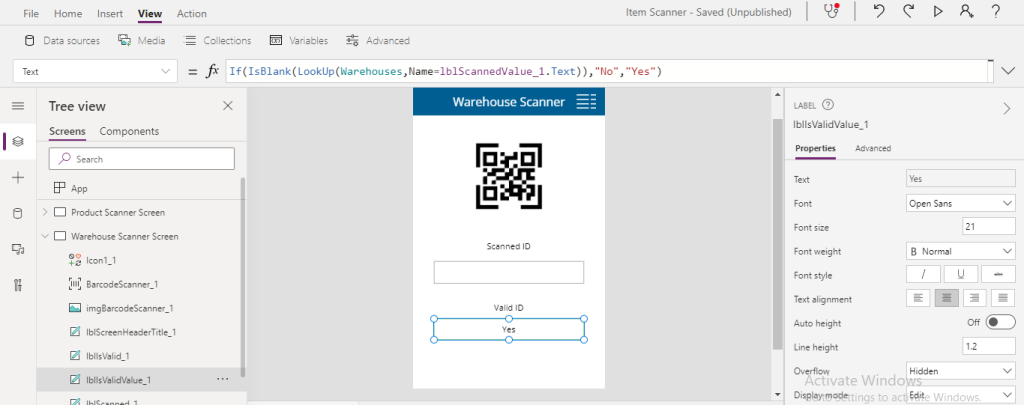
Scenario: You are validating that the scanned Warehouse name is a valid Warehouse in your Fin & Ops application. Because, in Fin & Ops generally we can’t expect large number of warehouses. So this sort of validation required comparatively simple approach.

So let’s see that approach with example.

My Canvas App

To demonstrate this scenario, I have created a simple Canvas App with a scan screen for Warehouse and we’ll perform a validation for a scanned warehouse name.

“Scanned Warehouse Name” will show a warehouse name that you’ll scan from a barcode.
“Valid Warehouse” will show “Yes”, if the scanned warehouse is a valid warehouse, it will show “No” for invalid warehouse.

Validation Approach:

If you are dealing with small data volume like our example, then you can easily use below expression On “Text” property of “Valid Warehouse” control to validate the scanned warehouse name.
If(IsBlank(LookUp(<‘Datasource name’>, <‘Column name’> = <‘Scanner Control Name’>.Text ))), “No”, “Yes” )

It’ll work fine as far as your data volume is small in your data-source (“Warehouses” in our case).

Note: I’m assuming that you’re aware that you can only test barcode scanner in your mobile device as of now.

But if you are dealing with large data volume so you need to take another way to maintain validation accuracy. We’ll see that approach in our next blog.

So stay tuned and Keep up the good work.

Thank you!

References:

  1. https://abkblogs.home.blog/2021/01/30/power-apps-data-validation-canvas-apps-scanner-part-2/
  2. https://powerapps.microsoft.com/en-us/blog/make-barcode-scanning-apps-in-minutes/
  3. https://docs.microsoft.com/en-us/powerapps/maker/canvas-apps/get-started-create-from-blank
  4. https://docs.microsoft.com/en-us/powerapps/maker/canvas-apps/controls/control-new-barcode-scanner
  5. https://barcode.tec-it.com/en/QRCode?data=Yorkville%20000_016

Power Apps: Canvas Apps Not Bringing New Records

Featured

Hey

If you are facing a problem which is similar to below scenario, then the following proposed solution is for you.

Scenario

  1. User is using your App in his mobile phone or any other device.
  2. During that someone is created a new record in your data-source from Model Driven App (or any other place).
  3. And your Canvas App is not bringing that new record for that user.

Solutions

  1. If your Gallery’s data-source is a “Collection” and you are populating that collection somewhere, then your expressions should be in the following sequence.

    Correct
    Refresh(<data-source>);
    Collect(<collection>, <data-source>);

    Incorrect
    Collect(<collection>, <data-source>);

  2. Otherwise, you need to add a button/icon and write the following formula on button’s “OnSelect” action to refresh your data-source.

    Expression
    Refresh(<data-source>);

Problem is solved!


Stay tuned for more solutions and Keep up the good work.

Thank you!