Power Apps: Data Validation Approach for Canvas Apps Barcode Scanner [Part 2]

Hey there,

In the previous part, we have seen a data validation approach for Canvas App scanner while we were dealing with small data volume. In this part, we’ll see a validation approach that we should take when we are dealing with large data volume.

Scenario: You are validating that the scanned product Id is a valid product Id in your Fin & Ops application. Because, in Fin & Ops we can expect large number of products. So this sort of validation required some extra care to maintain accuracy.

So let’s see that approach with example.

My Canvas App

We are using the same Canvas App that we have used in Part 1 of this series. We have added another scan screen for Product and we’ll perform a validation for a scanned product Id.

“Scanned Product ID” will show a product Id that you’ll scan from a barcode.
“Valid Product” will show “Yes”, if the scanned Product is a valid Product, it will show “No” for invalid Product.

Validation Approach:

To avoid validation inconsistencies while dealing with large data, we should first load the data in a collection and then we should use that collection for validation.

1) On “OnStart” Action of your App, write the following expression.
Clear(<Collection name>);Collect(<Collection name>,<Datasource name>);

2) On “Text” property of “Valid Product” value box, write the following expression.
If(IsBlank(LookUp(<Collection name>, <‘Column name’> = <‘Scanner Control Name’>.Text )), “No”, “Yes” )

That’s it! Though, “OnStart” action will take few seconds to load the data in your collection. But this approach will be accurate and validation will be super fast.

In this series we have learned some simple techniques to accurately validate the data that we are scanning from a Canvas App scanner. We’ll see more Canvas Apps techniques and approaches in our upcoming blogs. So stay tuned !

Thank you!

Reference:

  1. https://abkblogs.home.blog/2021/01/30/power-apps-data-validation-canvas-apps-scanner-part-1/
  2. https://barcode.tec-it.com/en/QRCode?data=D00112

Power Apps: Data Validation Approach for Canvas Apps Barcode Scanner [Part 1]

Hey there,

Adding a barcode scanner in your Canvas App is quite common requirement now and whenever you scan something, you need some sort of validation for the scanned values.

As far as I experienced, validation approaches for Canvas App scanner value are different based on your data volume.

Scenario: You are validating that the scanned Warehouse name is a valid Warehouse in your Fin & Ops application. Because, in Fin & Ops generally we can’t expect large number of warehouses. So this sort of validation required comparatively simple approach.

So let’s see that approach with example.

My Canvas App

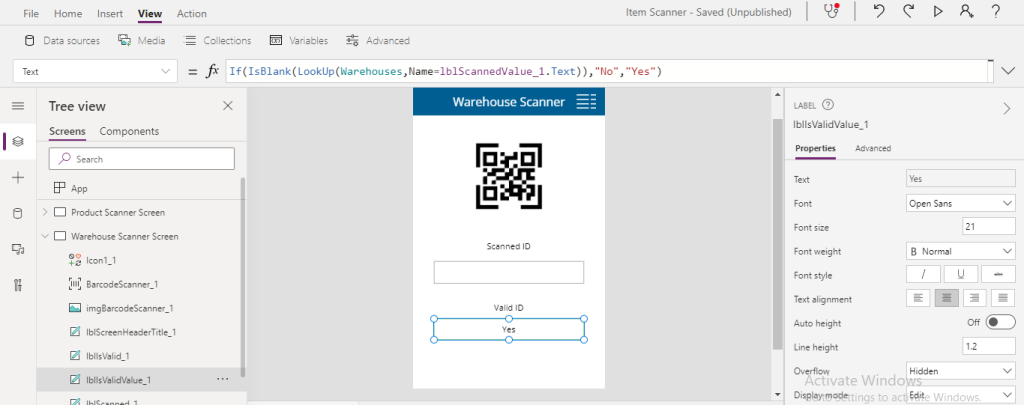
To demonstrate this scenario, I have created a simple Canvas App with a scan screen for Warehouse and we’ll perform a validation for a scanned warehouse name.

“Scanned Warehouse Name” will show a warehouse name that you’ll scan from a barcode.
“Valid Warehouse” will show “Yes”, if the scanned warehouse is a valid warehouse, it will show “No” for invalid warehouse.

Validation Approach:

If you are dealing with small data volume like our example, then you can easily use below expression On “Text” property of “Valid Warehouse” control to validate the scanned warehouse name.
If(IsBlank(LookUp(<‘Datasource name’>, <‘Column name’> = <‘Scanner Control Name’>.Text ))), “No”, “Yes” )

It’ll work fine as far as your data volume is small in your data-source (“Warehouses” in our case).

Note: I’m assuming that you’re aware that you can only test barcode scanner in your mobile device as of now.

But if you are dealing with large data volume so you need to take another way to maintain validation accuracy. We’ll see that approach in our next blog.

So stay tuned and Keep up the good work.

Thank you!

References:

  1. https://abkblogs.home.blog/2021/01/30/power-apps-data-validation-canvas-apps-scanner-part-2/
  2. https://powerapps.microsoft.com/en-us/blog/make-barcode-scanning-apps-in-minutes/
  3. https://docs.microsoft.com/en-us/powerapps/maker/canvas-apps/get-started-create-from-blank
  4. https://docs.microsoft.com/en-us/powerapps/maker/canvas-apps/controls/control-new-barcode-scanner
  5. https://barcode.tec-it.com/en/QRCode?data=Yorkville%20000_016